Broadband Manual Lappis
Get started with your broadband at Lappis
Choose the manual for your address and follow the steps with the matching images.
For you living at Professorsslingan 47, 49, 51, 53
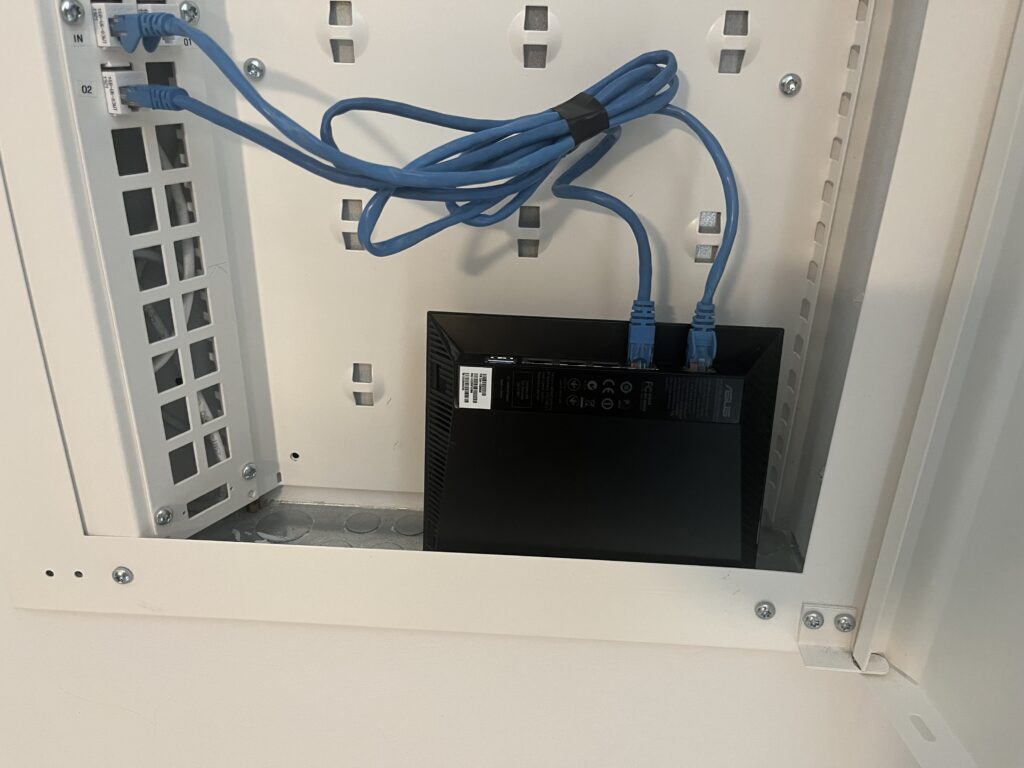
Here you will find instructions on how to connect your broadband in the media cabinet. Follow the steps below and use the images as guidance to get started.
Step 1. Open the media cabinet
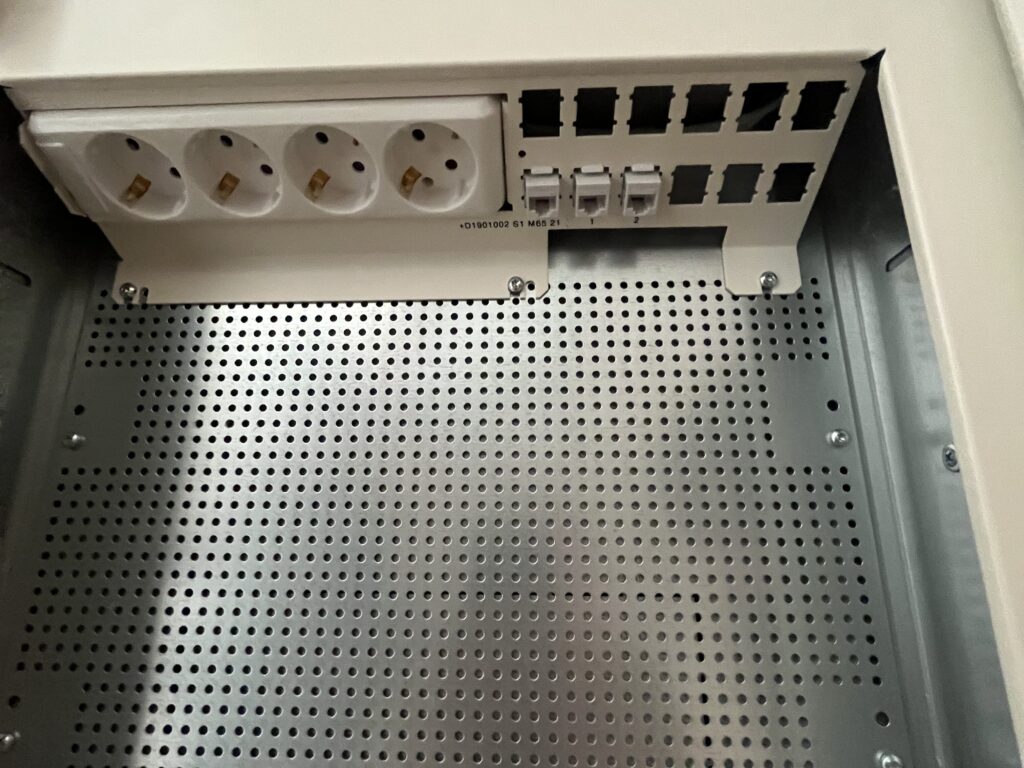
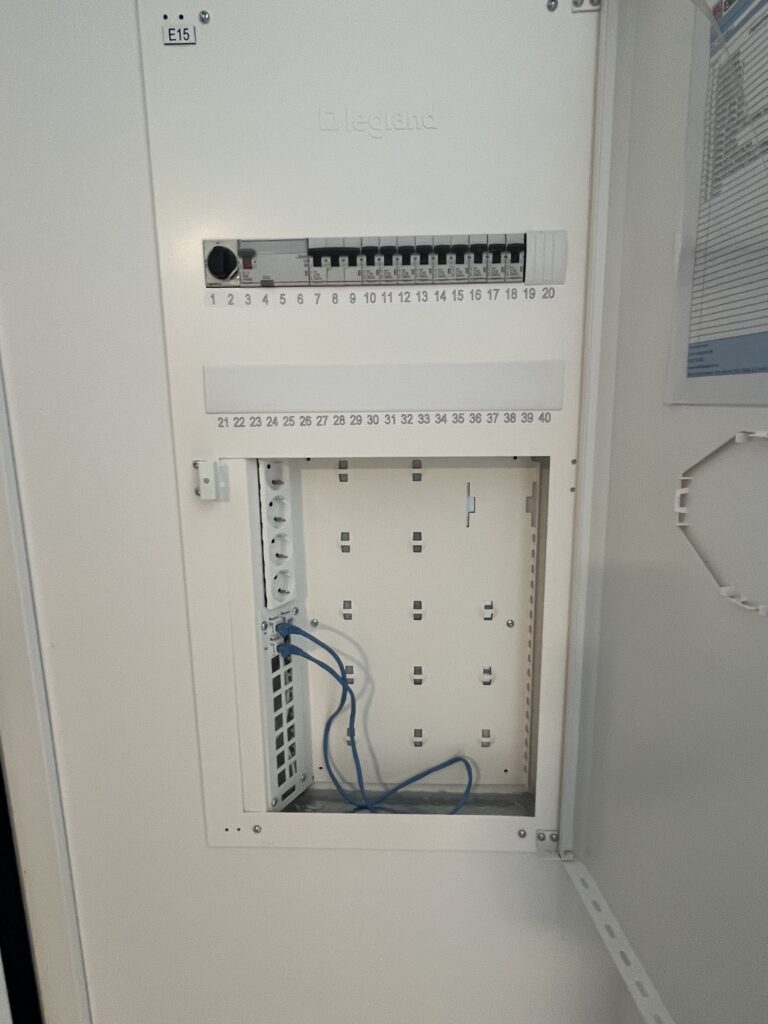
In the media cabinet, you will find the broadband sockets and the quick fuses. This is where the broadband connection is made and the quick fuses can be checked.

Step 2. Connect the broadband
In the rooms, there are broadband sockets corresponding to the ones in the cabinet.
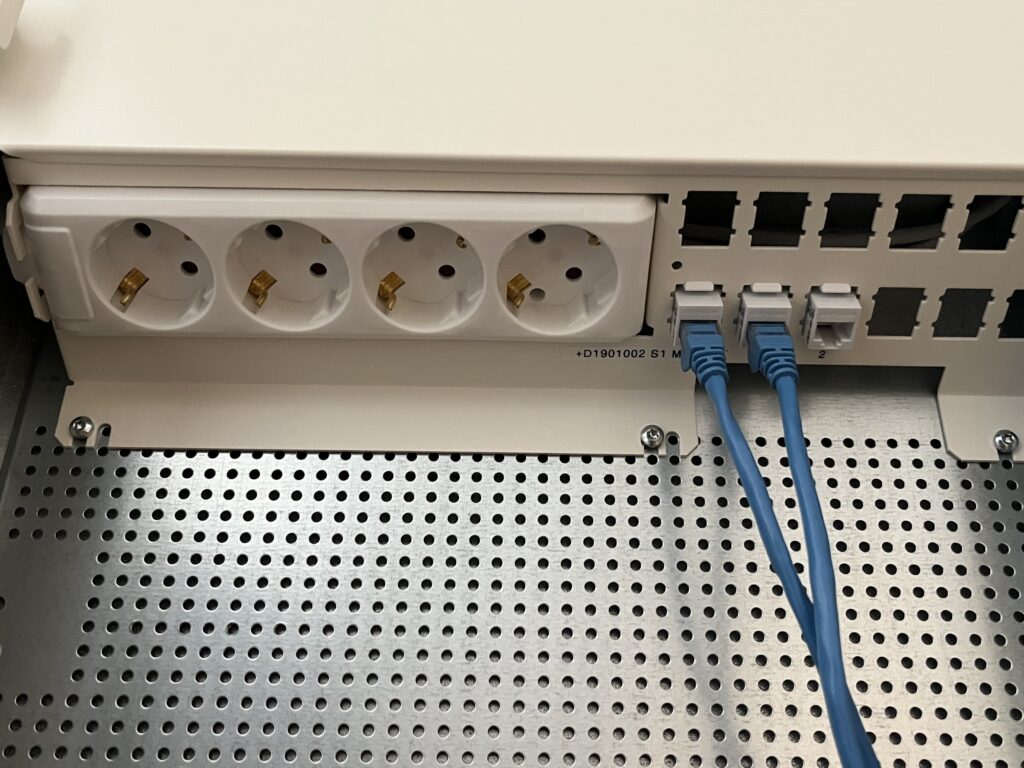
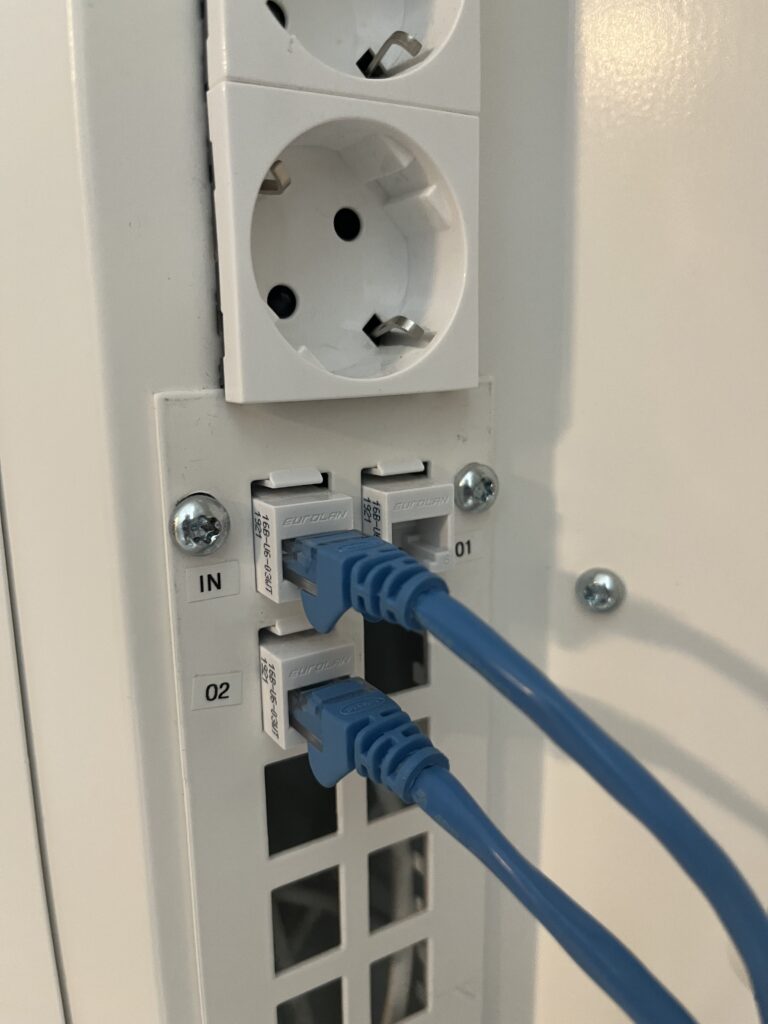
- Connect a network cable to the socket in the cabinet marked “IN”.
- Then connect the cable to the socket in the cabinet that corresponds to the room.
Step 3. Use WiFi
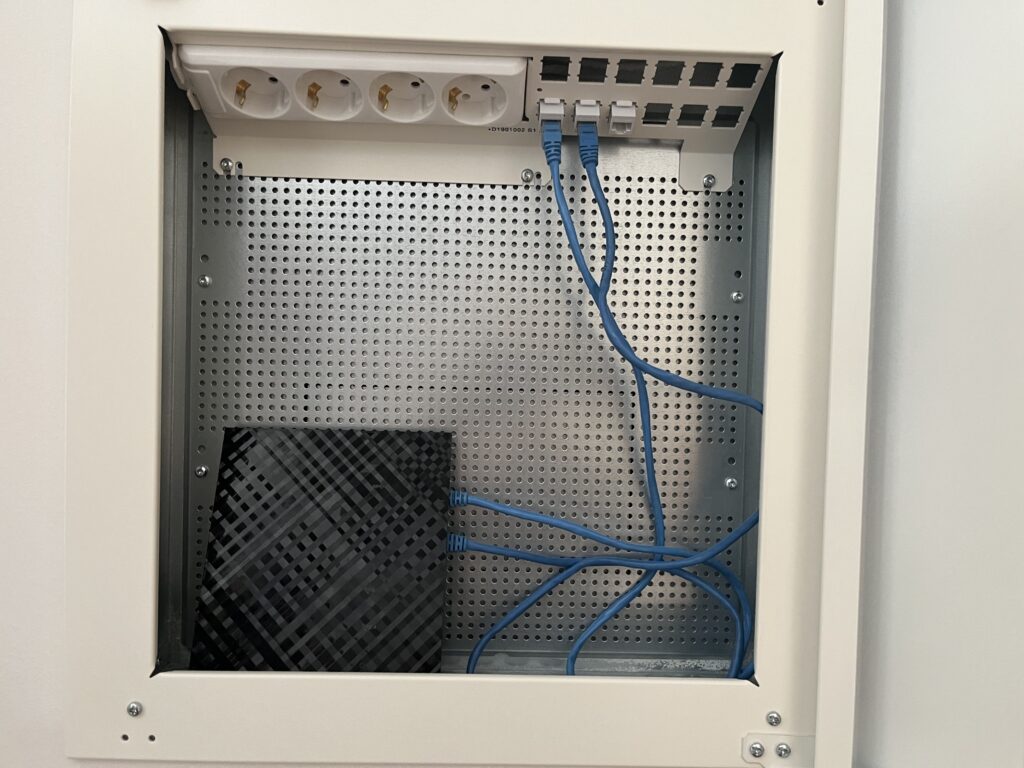
For wireless internet, a WiFi router can be connected either directly in the cabinet or to a socket in the room.
To connect the router in the cabinet:
- Connect the cable from “IN” to the router’s input port.
- From the router, the connection can also be extended to the sockets in the rooms.
For you living at Professorsslingan 55, 57, 61, 63, 65, 67
Here you will find instructions on how to connect your broadband in the media cabinet. Follow the steps below and use the images as guidance to get started.
Step 1. Open the media cabinet
In the media cabinet, you will find the broadband sockets and the quick fuses. This is where the broadband connection is made and the quick fuses can be checked.
Step 2. Connect the broadband
In the rooms, there are broadband sockets corresponding to the ones in the cabinet.
- Connect a network cable to the socket in the cabinet marked “IN”.
- Then connect the cable to the socket in the cabinet that corresponds to the room.
Step 3. Use WiFi
For wireless internet, a WiFi router can be connected either directly in the media cabinet or to a socket in the room.
To connect a router in the cabinet:
- Connect the cable from “IN” to the router’s input port.
- From the router, the connection can also be extended to the sockets in the rooms.